
Access to Blackboard has been updated to make it simpler and more secure.
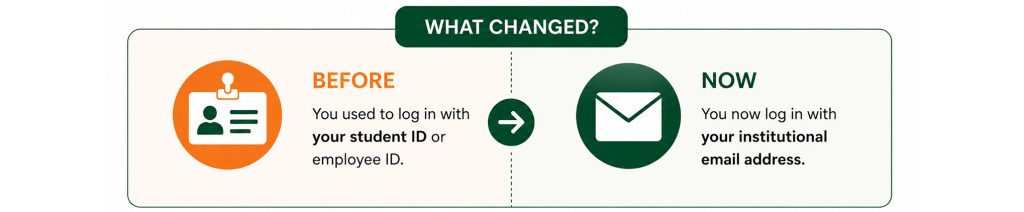
How to Access Blackboard
You can access Blackboard in different ways:
- Through the institutional portal:
www.udlap.mx
- Or directly at:
click.udlap.mx
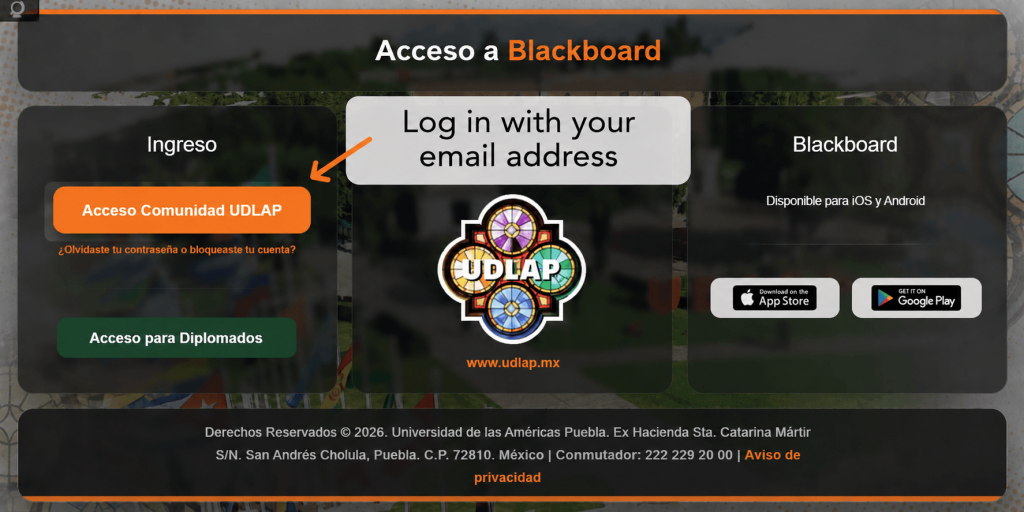
Once you are on the Blackboard main page, click on the “UDLAP Community Access” button, identified in orange.
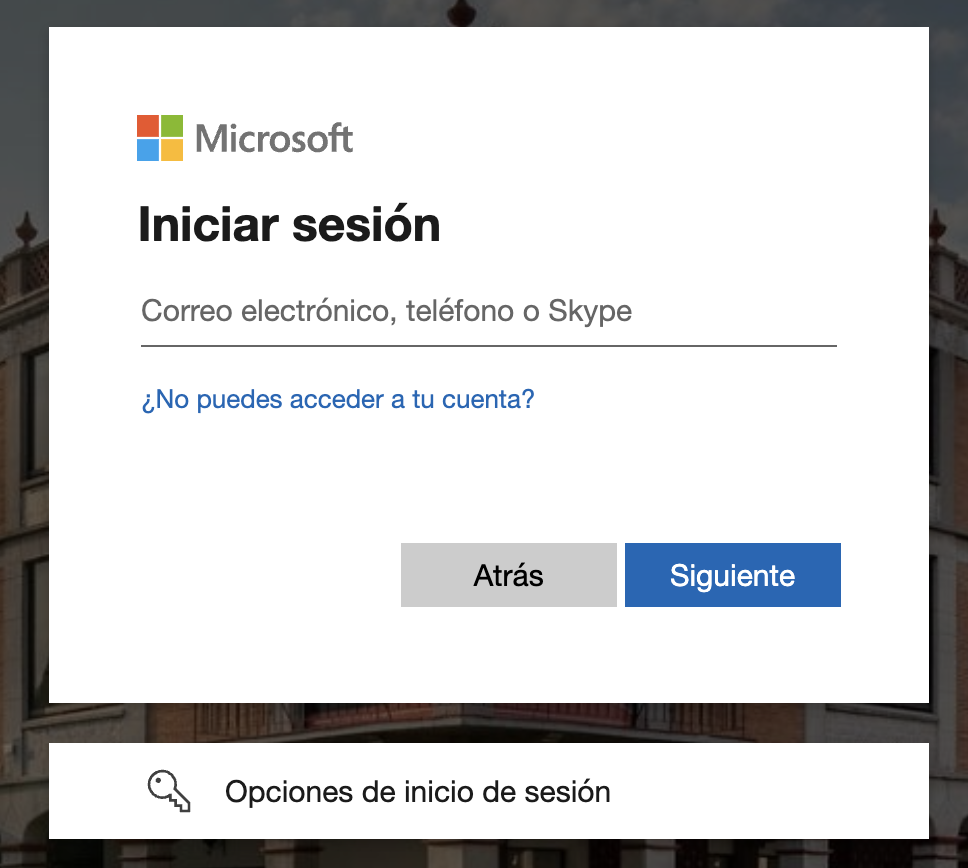
Now enter your institutional email address and click the Next button.
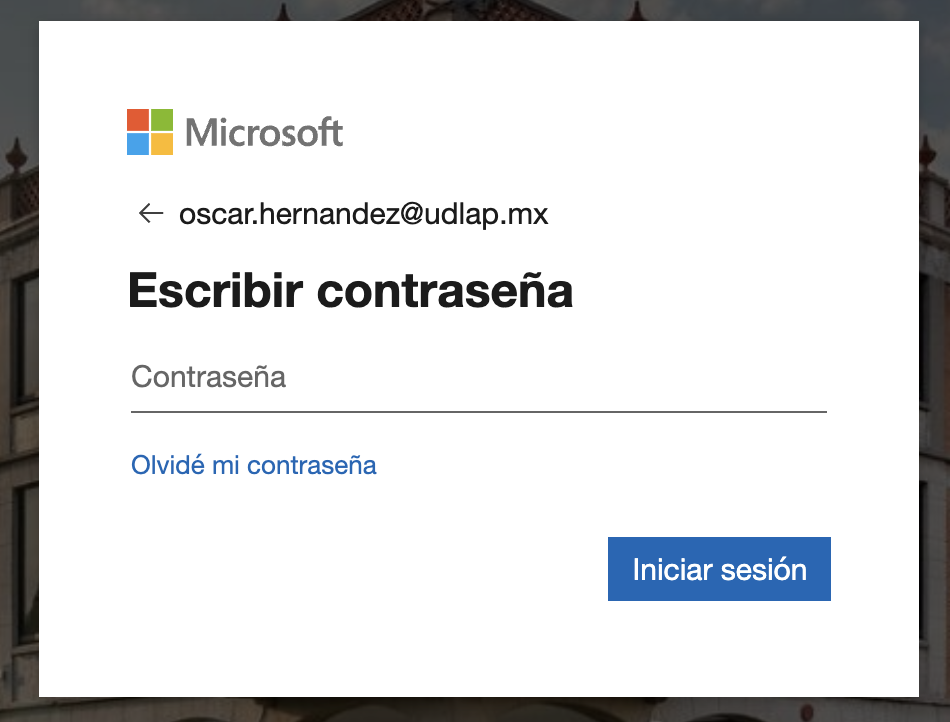
Enter your institutional email password. After that, you will need to authenticate your access using the Authenticator application in order to log in.
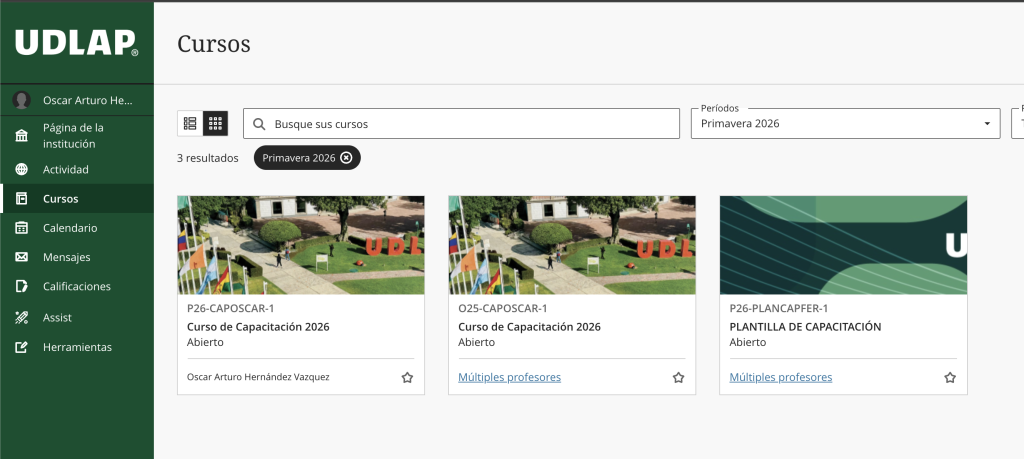
Once you complete the authentication process, you will be able to view your courses, as well as the academic materials and resources available in Blackboard.
Recommendations
- If your session does not start correctly, try clearing your cache or using a different browser.
- Always use your full institutional email address.
- Verify that there are no typing errors (spaces, uppercase letters, etc.).
- Keep your password secure and do not share it.
What to Do If You Cannot Access Blackboard
If you experience problems accessing Blackboard, we recommend following these steps:
1.- Verify Your Active Session
Make sure you are not signed in with a personal Microsoft account such as Hotmail or Outlook.
2.- Clear Your Browser Cache and Cookies
This helps remove stored data that may interfere with access. (Delete Coockies)
3.- Try Accessing from Another Browser
You can try browsers such as Chrome, Safari, or Firefox to rule out browser-specific issues.
4.- Use an Incognito or Private Window
Open a private or incognito window and try accessing Blackboard again.
Technical Support
If you experience problems accessing Blackboard:
Please contact the Service Desk team at extension 2127 or by email at service.desk@udlap.mx