
Welcome to the tenth edition of the 2026 Blackboard Updates Newsletter! In this October edition, we present the changes included in release 4001.2, designed to enhance teaching and learning in the digital environment.
Table of Contents
- AI Conversation: Restrict a conversation to a specific language
- Release Conditions: The specific members rule no longer blocks other conditions.
- Rubrics: New Rubric Management page
- Rubrics: Exporting and importing rubrics
- Gradebook: Display usernames and last access dates in Grid View
- Gradebook: Displaying possible points in List View
- Gradebook: Display exception indicators in Grid View
- Anonymous Grading: Reveal student identities
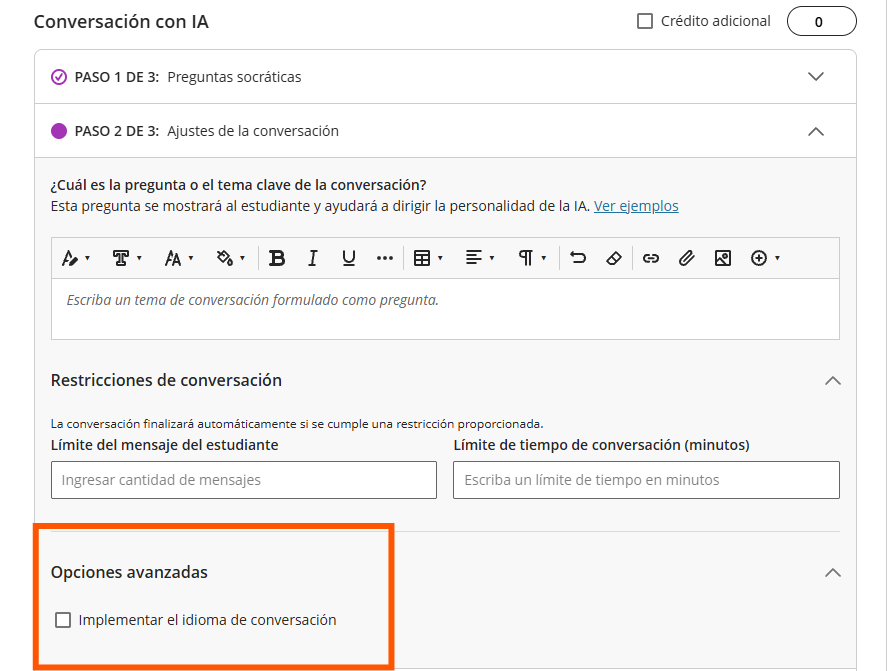
[1] AI Conversation: Restrict a Conversation to a Specific Language
It is now possible to set the language in which an AI conversation takes place. Once a language is selected, the AI responds in that language throughout the conversation and will not switch to another language, even if the student requests it.
[2] Release Conditions: The Specific Members Rule No Longer Blocks Other Conditions
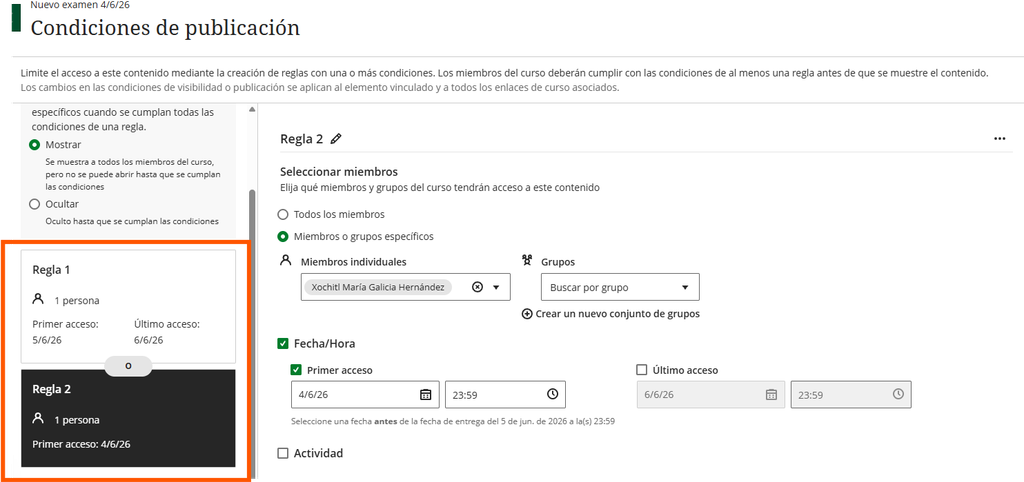
You can now add a “Specific Members or Groups” rule to an item’s release conditions alongside other rules, such as a date-based rule. Each rule is evaluated independently, so students who meet the criteria for any of the rules can view the item.
For example, an instructor sets two release conditions for a test:
- Rule 1: Specific Members or Groups, with one student selected.
- Rule 2: A date-based rule with an access date that has already passed.
The selected student can view the test because they meet the criteria for Rule 1. However, other students who do not meet the criteria for either rule cannot view the test.
[3] Rubrics: New Rubric Management Page
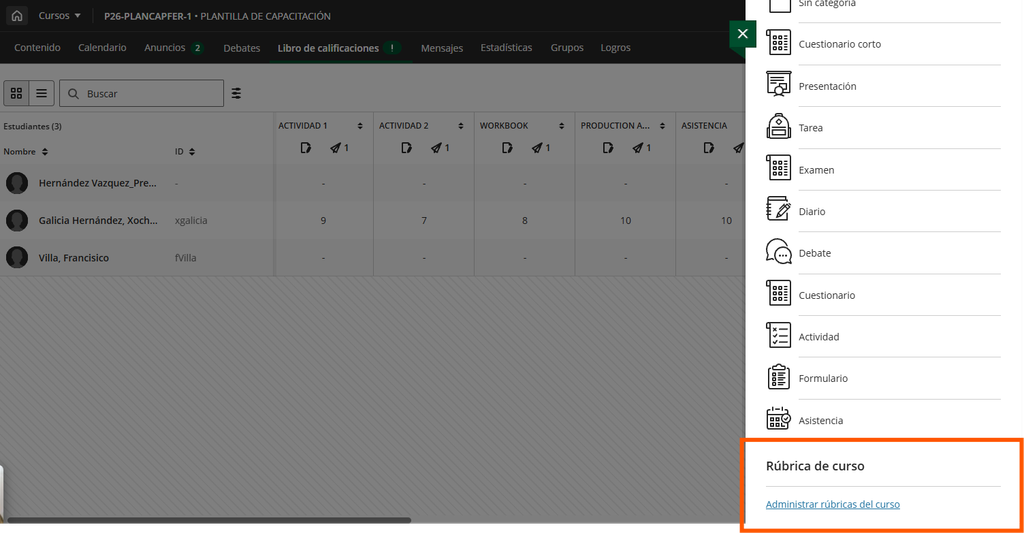
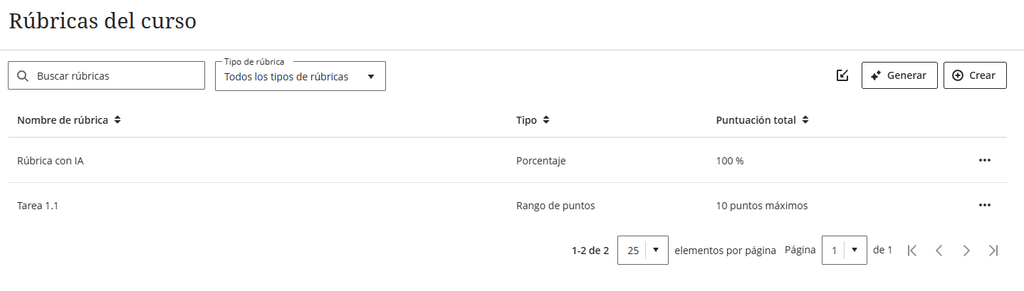
The Course Rubrics page is a dedicated page for managing all rubrics within a course. To access it, select Manage Course Rubrics in the Course Rubrics section of the Gradebook Settings. From the Course Rubrics page, you can export and import rubrics.
[4] Rubrics: Exporting and Importing Rubrics
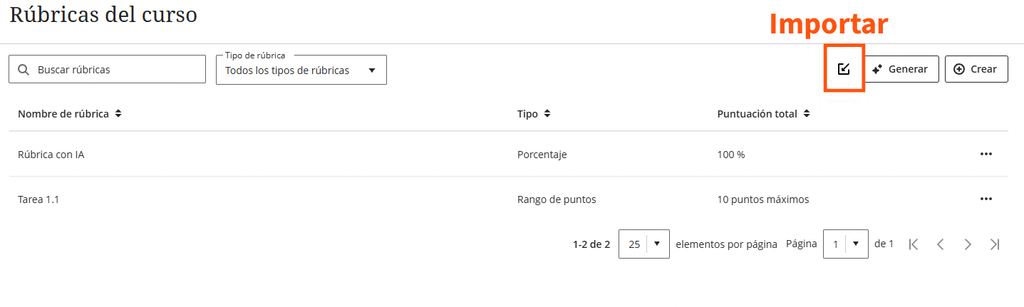
The Rubrics page now allows you to import and export rubrics from one course to another.
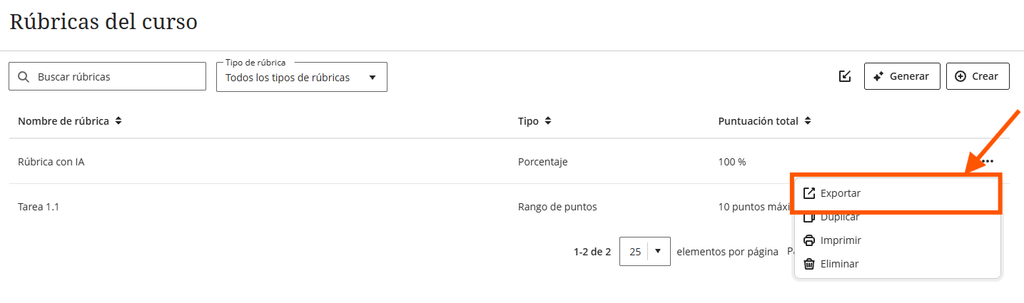
Select the ellipsis menu for the rubric and choose Export. The rubric will automatically download as a ZIP file. The file is named using the rubric’s name and the course title and is saved in the instructor’s Downloads folder. The ZIP file is designed to be imported into another course and is not a viewable document.
[5] Gradebook: Display Usernames and Last Access Dates in Grid View
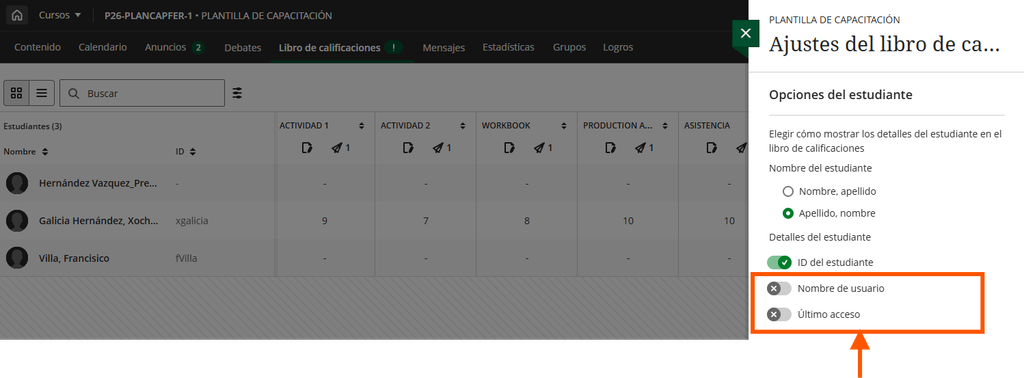
In the Student Information section of the Gradebook Settings panel, two new toggles are available: Username and Last Access. Both toggles are turned off by default. When enabled, each toggle displays a sortable column to the right of the Name column in Grid View.
[6] Gradebook: Display Possible Points in List View
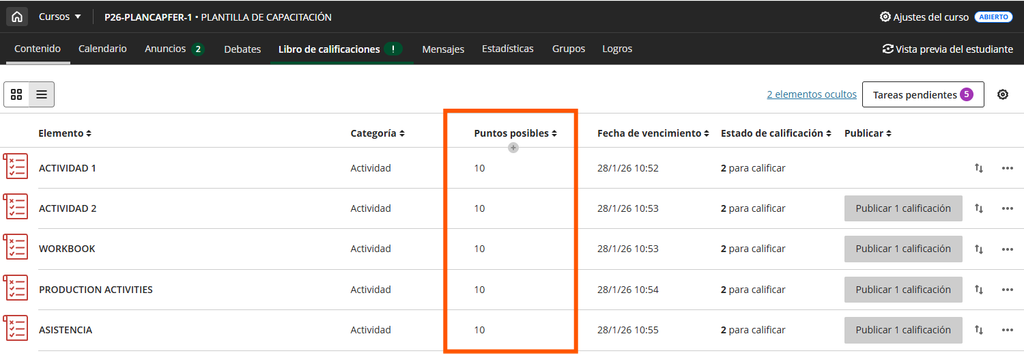
The maximum point value is now displayed as a sortable column in the Gradebook’s List View, allowing instructors to quickly see the point value for each gradable item.
[7] Gradebook: Display Exception Indicators in Grid View
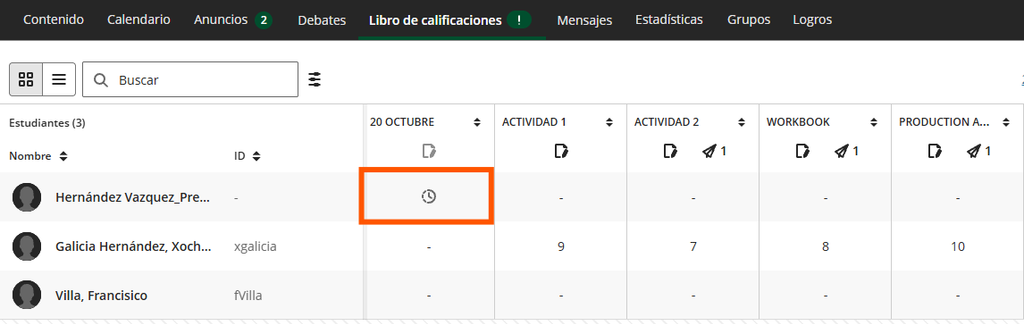
Now, when a student has an exception for a gradable item, a clock icon appears in their cell. These exceptions include differences in due dates, access dates, or the number of allowed attempts. The clock icon is displayed from the time the exception is recorded until the item is graded.
[8] Anonymous Grading: Reveal Student Identities
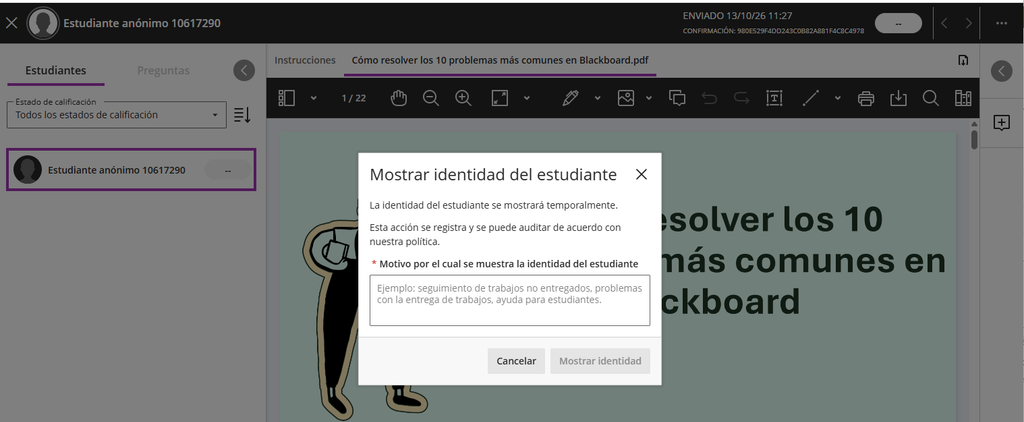
In Flexible Grading, authorized users now have a new menu option for anonymously graded assessments: Show Student Name or Hide Student Name. When a student’s name is revealed, their profile card appears, displaying their name, ID, and avatar in both Student View and Question View.

We hope these updates will be helpful in your day-to-day activities. We invite you to stay tuned for our next update.
Sincerely,
Dirección General de Tecnologías de la Información